
How to Add Upsells and Cross-Sells on Shopify
Adding an upsell to Shopify starts with a useful offer and a clear shopper journey. Decide what the shopper needs next, where the suggestion belongs and what happens after acceptance. Only then choose the app or configuration that can support it. An attractive card is not a finished offer if its variant, quantity or checkout price is wrong.

Adding an upsell to Shopify starts with a useful offer and a clear shopper journey. Decide what the shopper needs next, where the suggestion belongs and what happens after acceptance. Only then choose the app or configuration that can support it. An attractive card is not a finished offer if its variant, quantity or checkout price is wrong.
This guide distinguishes the offer types, explains the FairRev workflow evidenced on its development store and provides checks for product, cart and drawer placements. The recorded FairRev example is a product-page accessory add-on. Cart and drawer walkthroughs still need verification, and public App Store installation is not verified. Instructions below distinguish demonstrated steps from checks that still need to be performed.
The goal is a shopper who understands the extra item and a merchant who can reconcile the result. There is no promised conversion increase, and revenue attributed to an offer is not automatically revenue the offer caused.
Understand upsells and cross-sells
An upsell usually moves a shopper toward a more valuable version of something they already intend to buy. A cross-sell suggests a complementary product. A larger storage option is an upgrade; a compatible case is an accessory. Both can increase order value, but they ask the shopper to make different decisions.
Use that distinction when writing copy. An upgrade should explain what changes and whether it replaces the current item. An accessory offer should explain why the second item is relevant and whether the main item still needs to be added separately. Calling every extra product an upgrade can leave the shopper unsure what will arrive.
FairRev's recorded example offers ski wax beside a snowboard. It is an accessory flow configured as Add on, not evidence of automatic replacement with a more expensive snowboard. The product names and discounted wax price come from a development catalogue. They demonstrate an interface and a test journey, not merchant outcomes.
Keep the commercial choice small enough to understand. A useful accessory can solve a problem the shopper would otherwise discover later. An unrelated discounted product creates another decision without completing the purchase. Check fit, size, variant, stock and fulfillment before selecting the offered item. Those details matter more than how strongly the headline says the customer is saving.
Also separate catalogue add-ons from services. A selected product is not proof of a gift-wrap message field, warranty policy or shipping-protection integration. Do not offer a service workflow merely because an app has an add-on label.
Choose an offer and a supported placement
Write an offer sentence before configuring it: when the shopper is considering this product, show this exact companion variant at this quantity and price. State whether a discount applies, when the offer qualifies and how it can be declined. That sentence becomes your acceptance test.
Choose the point in the journey where the sentence makes sense. A product-page accessory can help evaluate a main item. A cart suggestion can use what is already selected. A drawer offer has less room and needs to preserve access to checkout. Showing the same prompt everywhere can create repeated interruptions rather than useful context.
A Shopify upsell app should be evaluated by the supported journey, its limitations and its billing rule. A placement checkbox is not a guarantee of compatibility. Product and cart app blocks need suitable theme sections. A drawer needs an adapter that can find its container, respond to opening and reflect cart changes.
Start with one offer and one placement. Keep other promotions stable so the initial walkthrough has an interpretable result. Record the theme, template, device width, selected variant and intended discount. If a third-party cart app replaces the drawer, include it in the test rather than assuming the theme name describes the cart implementation.
Choose an appropriate next action while public availability is unresolved. Reviewing a demonstrated workflow or asking support about a theme is useful. Sending a merchant to an unavailable installation destination is not.
Add an upsell to a product page
In the recorded FairRev development-store workflow, the merchant opens Offers, creates an Add on offer and selects Product page. The configuration identifies the product that triggers the offer and the catalogue variant being offered. The merchant writes a headline and acceptance label and sets the discount. The preview shows the intended shopper presentation.
Save and Publish are separate operations. Saving preserves a draft. Publishing queues the storefront update, so verify the resulting live status instead of treating a successful save as proof that shoppers can see it. The development walkthrough also added the FairRev app block to the product template through the theme editor.
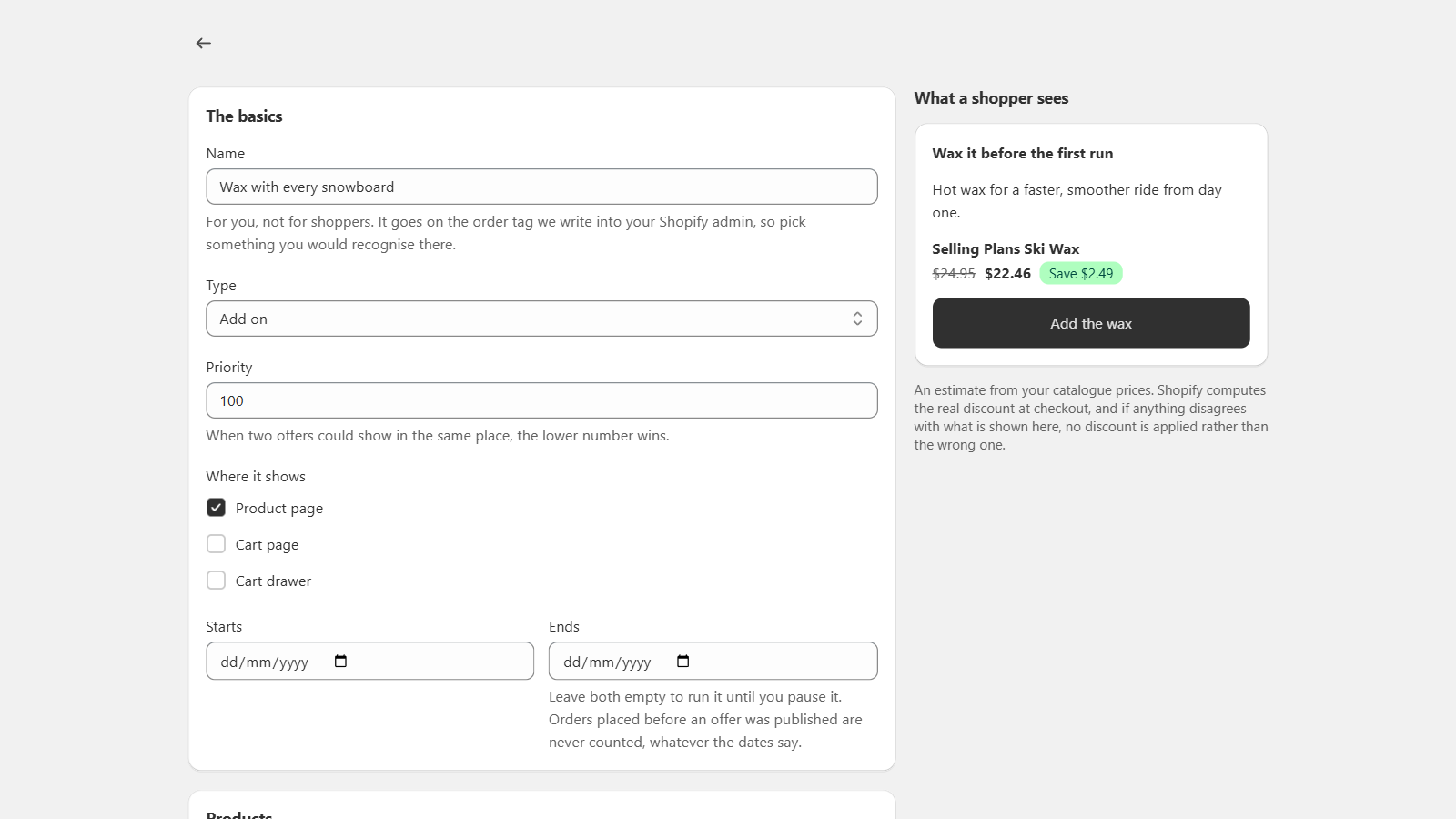
This screenshot is evidence for that accessory configuration. It does not demonstrate a replacement upsell or every offer type in the builder. Use the actual product-page result to check that the headline, product name, discount and button agree with the configuration.
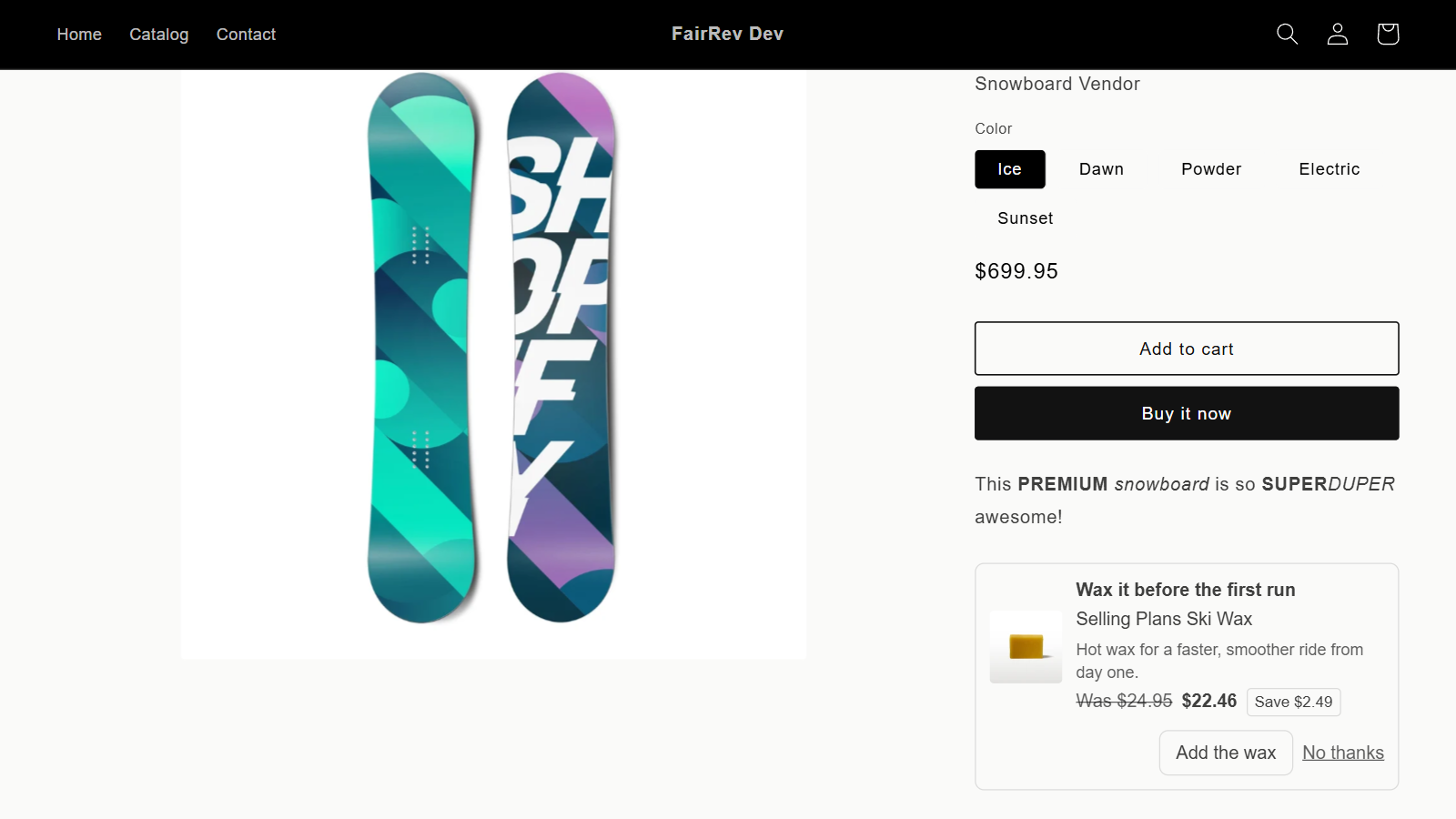
The shopper's acceptance adds the offered product. Do not assume it also adds the main product displayed on the page. Walk the full cart and checkout sequence and verify both lines when both are required. Compare the final discounted accessory amount with the displayed promise. A preview is an estimate from catalogue information; the final Shopify order is the monetary record.
If the configuration cannot produce a justified price or violates the discount safeguards, investigate before launch. The correct response is not to strengthen the headline and hope checkout will agree.
Add related products and cross-sells
Choose related products manually according to the task the shopper is completing. For a consumable, consider whether it is compatible and whether the ordinary product already includes enough. For an accessory, check the actual variant relationship. A recommendation that fits one model can be wrong for another.
FairRev's verified accessory flow uses selected catalogue variants. Its builder also exposes a Cross sell type, but a dedicated walkthrough of that type is still required. The Shopify cross sell app guide shows the recorded accessory configuration and shopper result, along with the limits of that demonstration.
Do not describe manual selection as a purchase-history recommender. A merchant's curation can be useful without an algorithm. Explain what determines the products: the selected trigger and the merchant's offered variants. That description lets the merchant assess maintenance when products change.
Think through existing cart contents. If the accessory is already present, another prompt can add an unwanted duplicate. Test that situation directly, along with removing the trigger item and changing variants. The shopper should understand whether accepting adds one unit, a configured quantity or an entire group.
Write copy around relevance first and discount second. A clear product name and quantity help the customer verify the choice. Avoid a generic button that conceals which item will be added. The decline path should leave ordinary shopping usable and should not imply that declining an optional accessory makes the main product unsuitable.
Configure cart page and cart drawer offers
Cart page and cart drawer are related placements with different integration needs. The page uses a theme block in a suitable section. The drawer needs a compatible adapter and a refresh journey that keeps its contents understandable after acceptance. Keep both contexts in one Shopify cart upsell app evaluation rather than assuming they are interchangeable.
FairRev contains Dawn and Horizon adapters and a generic event fallback. These are implementation targets, not a live-tested list covering every version or customization. A generic drawer may need reopening to show the new line; an unrecognized drawer may show no offer. The documented product-page test does not verify either cart surface.
For a cart offer, define eligibility from what the shopper actually selected. Check a qualifying basket, an empty basket and a basket where the trigger is removed. Ensure the added variant and quantity match the offer text. Continue through checkout after each important change.
For a drawer, also check opening, closing and repeated opening after acceptance. Watch the cart badge, line items, totals and checkout control. A request that adds a line can succeed while the visible drawer remains stale. From the shopper's perspective, that is an incomplete interaction.
Record the actual theme and cart implementation beside the result. A theme-name prediction can help choose a test, but it is not evidence that a third-party drawer replacement works. Avoid publishing compatibility claims until the real journey has been observed.
Test the shopper experience and compatibility
Use a repeatable matrix rather than one happy-path click. Include the ordinary variant, another variant, the offered item already in the basket, changed quantity, unavailable inventory, a second discount and an interrupted connection. Check mobile layout and keyboard access. Confirm that checkout remains reachable throughout.
For each case, record expected items, quantities, displayed price and final charged price. Inspect the order after checkout; a cart display alone cannot confirm discount allocation on the final order. Retain a screenshot or recording for the exact configuration you intend to document.
Test failure behavior as well as success. If the offer service is unavailable, ordinary shopping should continue and the widget should hide. Do not accept a test where an optional marketing component prevents cart or checkout use. Test a later theme update again because the drawer markup or section structure may have changed.
Keep demonstrations honest. Development products and test orders are useful evidence when labeled clearly. They do not establish production performance, conversion lift or universal compatibility. If a screenshot belongs to an add-on flow, do not reuse it with a caption claiming it shows a bundle or a free gift.
Launch a shopper promotion only when its behavior is repeatable. If a variant, threshold or refresh case is unresolved, investigate that limitation and request support before enabling the offer in your live store.
Check attributed orders and app charges
After the shopper journey, inspect the merchant side. Find the order, compare offered variants and discounted amounts and read the explanation for why an item counted. Use the Not counted view to understand exclusions. Corrections should remain visible beside the original attribution instead of making history disappear.
Read FairRev attribution for the formal matching, quantity, settlement and refund rules. The presence of an offer event does not make the whole order billable. Attribution assigns eligible item revenue according to a rule; it does not show what the shopper would have bought without the suggestion.
Then read FairRev pricing. The current free plan has a per-period allowance. The current paid plan has a 9.99 USD recurring minimum and a 19 USD maximum before applicable taxes. A paid period with no attributed revenue still owes the minimum. Introductory campaigns have conditions and do not necessarily halve usage.
Use this final check to decide whether the offer is ready: the shopper can understand and accept it, the cart and checkout honor it, the order explanation can be reconciled and the merchant understands the fee. If installation availability or a drawer journey is unresolved, ask support for a demonstration before choosing that workflow for your store.